
QR Code Photo Sharing: How It Works
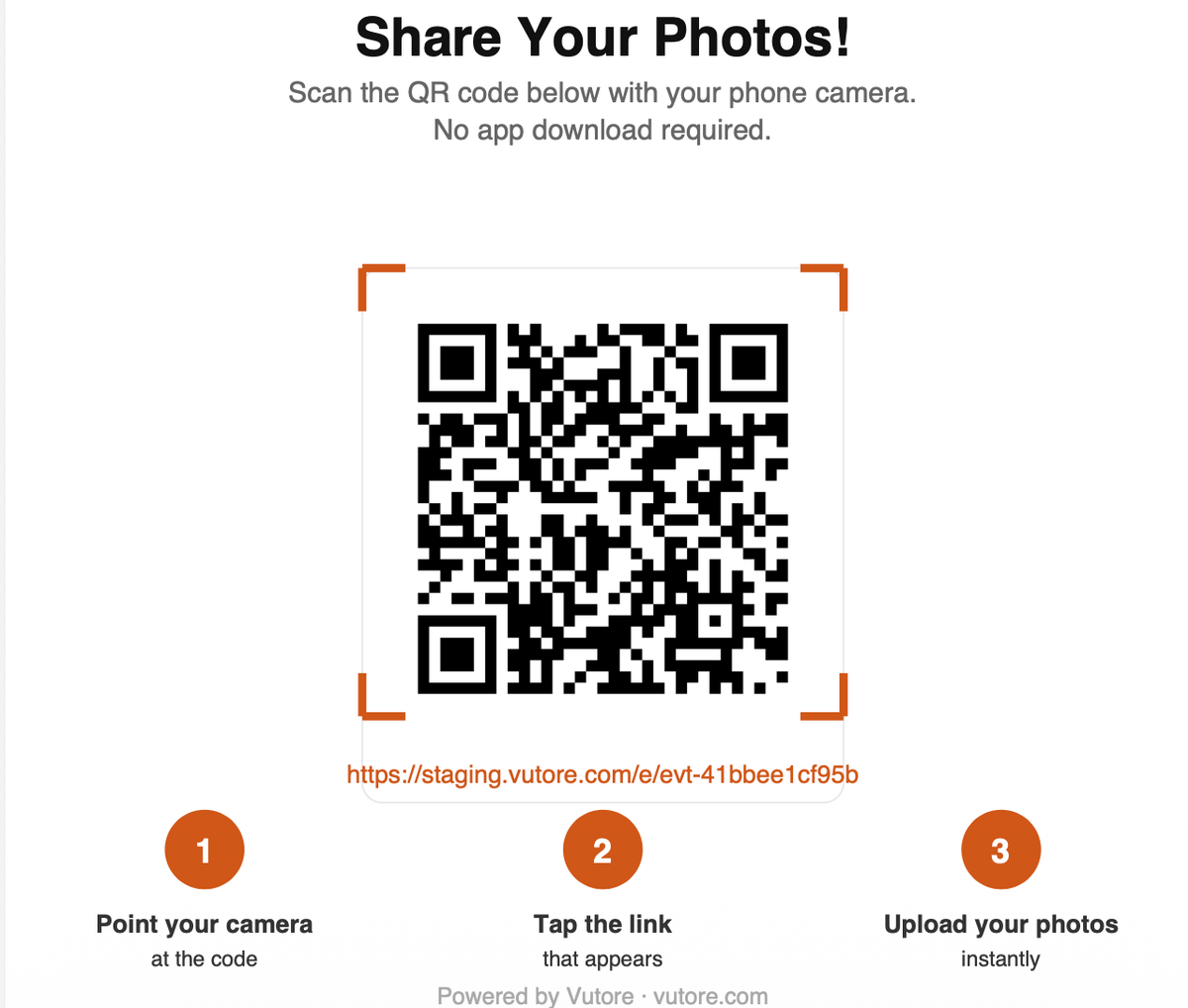
Every guest at your event is already carrying the only camera you need — you just have to get their photos out of their phone and into one place. QR code photo sharing is the mechanism that makes that handoff instant: no app, no account, no cables. Here's exactly what happens between a guest scanning a code and their photo showing up in your gallery — using Vutore™ as the walkthrough, since it's the tool built around this exact flow.
What a QR code actually does here
A QR code is just a shortcut. Instead of typing a long web address into a phone's browser, a guest points their camera at a square pattern and their phone opens a link automatically. That's the entire trick — there's no special hardware, no app scanning a "secure" chip, no Bluetooth pairing. It's a link, encoded as a picture, that any modern phone camera can already read without installing anything.
For photo sharing specifically, that link opens a page built for uploading: a guest lands on a mobile-friendly upload screen, not a homepage or a login wall.
The five steps, guest side
- Scan. Guest opens their phone's camera app (no separate scanner app needed on iPhone or Android built in the last several years) and points it at the printed or displayed code.
- Tap the link. A notification pops up; tapping it opens the upload page in their normal mobile browser — Safari, Chrome, whatever they already use.
- Enter a name. That's the entire "signup." No email, no password, no account to remember later.
- Upload. They take a new photo or video right there, or pick existing ones from their camera roll.
- Watch it land. Within seconds, their photo appears in the shared gallery — and on the live slideshow, if the host has one running.
That's the whole guest experience. No step requires anything to be downloaded, and nothing about it requires the guest to have used the product before.
What the host sets up beforehand
The QR code itself comes from the event, not the other way around — a host creates the event first, picks a guest limit, and gets a unique code and link generated automatically. From there:
- Print it or display it. A printed table tent or poster works for a reception; a code displayed on a screen works for a check-in table or a projector slide.
- Text or share the link directly. Not every event needs a printed code — the same link can go out in a text thread or a wedding website for guests joining remotely.
- Turn on the live slideshow, if wanted. Photos can display automatically on any screen at the venue as they're uploaded, with no separate setup beyond opening a URL.
- Set moderation sensitivity. Every photo is screened in under a second before it's visible to other guests; the host decides whether flagged items go live automatically, wait for review, or require manual approval every time.
Why this beats the alternatives
Compared to a group text or shared album: guests don't need to be in an existing contact group, and there's no separate "add everyone's number" step before the event starts. A guest who's never met the host can still contribute.
Compared to hashtag-based sharing (tagging photos on Instagram): every photo lands in one gallery whether or not the guest's account is public, and nothing depends on guests remembering a hashtag correctly or having a public profile at all.
Compared to an app-based photo-sharing tool: there's no App Store detour. The gap matters more than it sounds — asking a guest to download something during a reception is asking them to leave the moment they're in to go manage their phone's home screen. Most don't come back to finish.
What happens to the photos after the scan
Photos upload at their original resolution — not compressed down for quick previewing — so they're usable later for a photo book or a print, not just a phone screen. They land in a shared gallery any guest can browse and heart, and the host can download everything as a single ZIP file whenever they're ready, rather than saving photos one at a time. Retention depends on the plan: 1 month on the free tier, up to 12 months on the Wedding & Celebration plan, with a warning email before anything is deleted.
Frequently asked questions
Does the guest need cell service, or does this need venue WiFi?
Either works. If a guest has cellular data, that's enough — no venue WiFi required. If their connection drops mid-upload, the photo queues on their phone and finishes sending automatically once they're back in range.
Can guests upload from an iPhone and Android at the same event?
Yes. The upload page runs in a mobile browser, not a platform-specific app, so it behaves the same regardless of phone brand.
Does everyone need to scan the same code, or does each guest get their own?
One code per event, shared by everyone. There's no per-guest code to manage or hand out individually.
Is there a way to keep the gallery from being public to strangers?
Yes — the guest gallery only unlocks after someone uploads at least one photo, and it's only reachable through the event's specific QR code or link, not a guessable public URL.